I implemented Prim’s algorithm to create a MST of a graph in Python. I also created a visualization of it, shown below.
(This graph has 250 vertices and 1,000 edges. The source code used to generate this visualization can be found here)
Prim’s algorithm is worth understanding (albeit out of scope), and the problem it solves is finding the set of edges that minimizes the sum of their weights while guaranteeing there is exactly one path between any two vertices in the connected, weighted, undirected graph. In the case of my implementation, the weight of each edge was its length.
As it relates to the animation, the following two things should be apparent:
While we could render each frame from scratch based on the graph’s state, any reasonable rendering program has the ability to additively draw geometries to avoid this re-computation, and I care a bit about performance (even though this is written in Python*). Since PyGame and Raylib both support this, I’ll be using additive rendering in both of my implementations.
* I did rewrite the animation in C++ using Raylib so I could make it my X11 wallpaper, but that’s for another blog post.
Raylib has 2D rendered textures that can persist across frames. Here’s some Python code that makes use of them to visualize Prim’s algorithm:
import pyray as pr

# ... (other imports, Vertex class definition, Edge class definition)

pr.init_window(screen_width, screen_height, "prim")

# ... (other initialization)

texture = pr.load_render_texture(screen_width,screen_height)

while !done:
    if first:
        start = time.monotonic_ns()

        # After calling begin_texture_mode(texture) all writes will be
        # sent to the texture without having to specify we're writing to the
        # texture. This is also how begin_drawing() works, but for frames.

        pr.begin_texture_mode(texture)
        pr.clear_background(pr.BLACK)

        for edge in edge_list:
            edge.draw_edge(pr.DARKGRAY)
        for vertex in graph:
            vertex.draw_vertex(pr.DARKGRAY)

        pr.end_texture_mode()

        source_rec = pr.Rectangle(0, 0, screen_width, screen_height)
        dest_rec = pr.Rectangle(0, 0, screen_width, screen_height)

        pr.begin_drawing()
        pr.draw_texture_pro(texture.texture, source_rec, dest_rec, pr.Vector2(0, 0), 0, pr.WHITE)
        pr.end_drawing()

        first = False

        end = time.monotonic_ns()
        first_times.append(end - start)

        continue

    # ... (perform one step of Prim's algorithm)

    if len(to_draw_edge) != 0 or len(to_draw_vert) != 0:
        start = time.monotonic_ns()

        pr.begin_texture_mode(texture)

        for edge in to_draw_edge:
            edge.draw_edge(pr.WHITE)
        for vert in to_draw_vert:
            vert.draw_vertex(pr.WHITE)

        pr.end_texture_mode()

        source_rec = pr.Rectangle(0, 0, screen_width, screen_height)
        dest_rec = pr.Rectangle(0, 0, screen_width, screen_height)

        pr.begin_drawing()
        pr.draw_texture_pro(texture.texture, source_rec, dest_rec, pr.Vector2(0, 0), 0, pr.WHITE)
        pr.end_drawing()

        end = time.monotonic_ns()
        redraw_times.append(end - start)

        to_draw_vert = []
        to_draw_edge = []
Before our main iteration loop we initialize our texture. Then on our first iteration of the loop we draw each of the edges and vertices in our graph. On each subsequent iteration we only draw vertices added to to_draw_vert and edges added to to_draw_edge. Both lists are populated with edges and vertices that were visited since the last frame was rendered.
This code is also instrumented to track the amount of time the first frame takes to render, and the amount of time each subsequent frame takes to render as well.
Not included above are our Vertex and Edge classes which both implement draw functions. These functions have the following lines to draw geometries with Raylib:
pr.draw_circle(int(self.x),int(self.y), RADIUS, c) # vertex
pr.draw_line(int(self.v1.x), int(self.v1.y), int(self.v2.x), int(self.v2.y), c) # edge
Per the code comment in the larger code snippet, Raylib uses global state to track which canvas is being drawn to, so these functions can be called in texture mode or drawing mode with a similar effect.
PyGame persists frame state across frames by default so we don’t have to mess with rendered textures like we did with Raylib! Here’s a some code that does the PyGame rendering:
# ... (imports and such)

pygame.init()
display = pygame.display.set_mode((screen_width,screen_height))

# ... (other initialization)

while !done:
    if first:
        start = time.monotonic_ns()

        display.fill(BLACK)

        for edge in edge_list:
            edge.draw_edge(display, LIGHT_GREY)
        for vertex in graph:
            vertex.draw_vertex(display, LIGHT_GREY)

        pygame.display.update()

        end = time.monotonic_ns()
        first_time.append(end - start)

        first = False
        continue

    # ... (perform one step of Prim's algorithm)

    start = time.monotonic_ns()

    for edge in to_draw_edge:
        edge.draw_edge(display, white)
    for vert in to_draw_vert:
        vert.draw_vertex(display, white)

    pygame.display.update()
    end = time.monotonic_ns()

    to_draw_vert = []
    to_draw_edge = []
I find this code to be more readable than the Raylib code because we don’t have to maintain a standalone texture, and I also like how writing to a display is more explicit in PyGame:
pygame.draw.circle(display, WHITE, (self.x,self.y), RADIUS)
pygame.draw.line(display, WHITE, (self.v1.x,self.v1.y), (self.v2.x,self.v2.y), LINE_WIDTH)
(notice the first parameter is the surface to write to)
Despite this, the final pygame.display.update() is still using global state, which feels a bit strange given we have to specify which surface we are drawing to.
The benchmarks were executed under the following conditions:
Additionally, the metrics are all averages across 10 full runs.
| Library | First frame time (ms) | Incremental frame time (ms) |
|---|---|---|
| Raylib | 29.87 ± 0.74 | 2.88 ± 1.11 |
| PyGame | 323.39 ± 44.60 | 5.59 ± 0.65 |
In this benchmark Raylib’s average incremental frame render time was ~2x faster than PyGame’s, and its first frame render time was ~11x faster.
Let’s instrument our code to dig deeper:
if first:
    start = time.monotonic_ns()
    display.fill(BLACK)

    edge_times = [] # new
    vertex_times = [] # new

    for edge in edge_list:
        se = time.monotonic_ns() # new
        edge.draw_edge(display, LIGHT_GREY)
        ee = time.monotonic_ns() # new
        edge_times.append(ee - se) # new

    for vertex in graph:
        sv = time.monotonic_ns() # new
        vertex.draw_vertex(display, LIGHT_GREY)
        ev = time.monotonic_ns() # new
        vertex_times.append(ev - sv) # new

    pygame.display.update()
    end = time.monotonic_ns()
    first_time.append(end - start)

    first = False

    print("Edge time avg: " + str(sum(edge_times) / len(edge_times))) # new
    print("Vertex time avg: " + str(sum(vertex_times) / len(vertex_times))) # new

    continue
(Notice the addition of timing for individual edge and vertex draw times for the first frame)
Let’s also update our Raylib code to do the same:
if first:
    start = time.monotonic_ns()
    pr.begin_texture_mode(texture)
    pr.clear_background(pr.BLACK)

    edge_times = [] # new
    vertex_times = [] # new

    for edge in edge_list:
        es = time.monotonic_ns() # new
        edge.draw_edge(pr.DARKGRAY)
        ee = time.monotonic_ns() # new
        edge_times.append(ee - es) # new
    for vertex in graph:
        vs = time.monotonic_ns() # new
        vertex.draw_vertex(pr.DARKGRAY)
        ve = time.monotonic_ns() # new
        vertex_times.append(ve - vs) # new

    pr.end_texture_mode()

    source_rec = pr.Rectangle(0, 0, screen_width, screen_height)
    dest_rec = pr.Rectangle(0, 0, screen_width, screen_height)

    pr.begin_drawing()
    pr.draw_texture_pro(texture.texture, source_rec, dest_rec, pr.Vector2(0, 0), 0, pr.WHITE)
    pr.end_drawing()

    end = time.monotonic_ns()
    first_time.append(end - start)

    first = False

    print("Edge time avg: " + str(sum(edge_times) / len(edge_times))) # new
    print("Vertex time avg: " + str(sum(vertex_times) / len(vertex_times))) # new

    continue
Running this updated code once we find:
| Library | Avg. Edge Draw Time (ns) | Avg. Vertex Draw Time (ns) |
|---|---|---|
| PyGame | 9504.15048 | 686.6508 |
| Raylib | 944.15884 | 3016.1852 |
PyGame is faster at drawing vertices (circles), but slower at drawing edges (lines). Since we are drawing many more edges than we are vertices, this contributes to making PyGame slower.
PyGame is slower at drawing lines because it uses SDL which computes lines pixel by pixel on the CPU*, while Raylib appends the line ends to a queue for batch processing, to be asynchronously processed by the GPU.
In the case of vertices, Raylib calls DrawCircleSector(), and this in turn appends geometries to the GPU drawing queue, but each circle is made of many discrete geometries which are each appended to the queue, costing cycles. Contrasting this with the PyGame approach where PyGame only has to draw a few pixels onto the surface.
* There are ways to change the rendering pipeline for PyGame to make better use of GPUs, but these approaches are either complex or experimental.
That’s not the fully story. Let’s consider what the numbers above mean. The first frame renders 2,500 vertices, 25,000 edges. Each subsequent frame renders 1 vertex and 1 edge. If we multiply these numbers with the values we calculated for the amount of time each draw takes, we get the following expected frame times:
| Library | Expected First Frame Draw Time (ms) | Expected Subsequent Frame Draw Time (ms) |
|---|---|---|
| PyGame | 239.3204 | 0.0101908 |
| Raylib | 31.14443 | 0.003960344 |
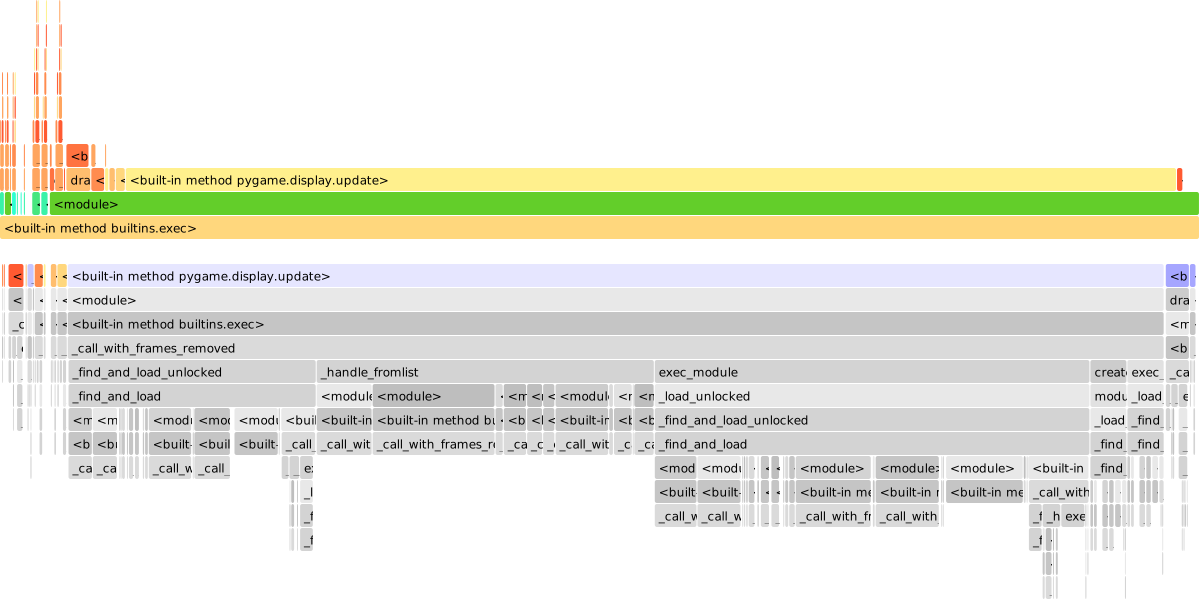
Based on this, we see the first frame times are on par with what we actually saw in our benchmarking, but the subsequent frame draw times are orders of magnitude faster than what we benchmarked, and since most frames are subsequent frames, they are severely impacting performance. Let’s see if we can figure out why this disparity exists.
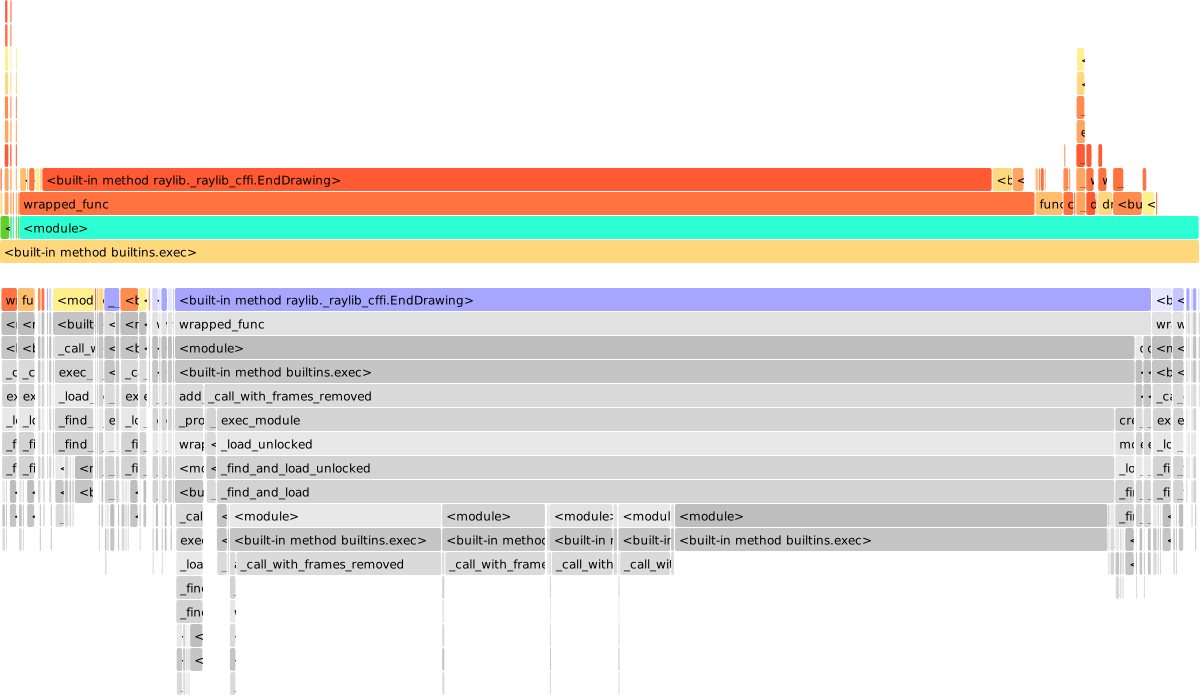
We see most of our time is being spent in EndDrawing() for Raylib and pygame.display.update() for Pygame. After instrumenting these calls we find the following times per invocation:
| Library | Function | Average Call Time (ms) |
|---|---|---|
| PyGame | EndDrawing() |
5.677199 |
| Raylib | pygame.display.update() |
2.680623 |
Based on our original frame time benchmarks, these calls make up almost all of the time spent rendering subsequent frames.
In the case of Raylib, EndDrawing does a few things:
rlDrawRenderBatchActive()
SwapScreenBuffer()
glfwSwapBuffers(), but this is beyond scope as it requires an understanding of OpenGL and double buffering.Most of the time spent here is on the second step. This is because issuing the instructions to swap will flush the driver’s command stream, and once a few frames are in flight, this will block until the GPU retires one.
Let’s step through the PyGame update() function too:
pg_update() in src_c/display.c
pg_update() calls SDL_UpdateWindowSurfaceRects
The main reason this is slower is PyGame copies the whole frame on the CPU for each frame while Raylib’s frame is already in VRAM and the swap doesn’t blit.
Out of the box Raylib has better performance because it performs hardware accelerated rendering. In terms of ergonomics, they both have their own quirks. Raylib feels like a C library with Python bindings (because it is!), while PyGame feels inconsistent, mixing both explicit surface drawing, and global state for frame updates.
Personally, I’m not keen on using PyGame again because I enjoy writing performant software, and the reality of Python is it can’t be performant. This doesn’t mean I won’t ever write Python code again, it’s useful for first passes at a problem, but if I want to productionize that software I’ll have to rewrite it in a sensible programming language. The nice thing about doing a first pass on a project in Raylib is you can then rewrite it in C using Raylib directly, but the same isn’t true for PyGame.